
What Is Computer and Laptop RAM? A Complete Guide
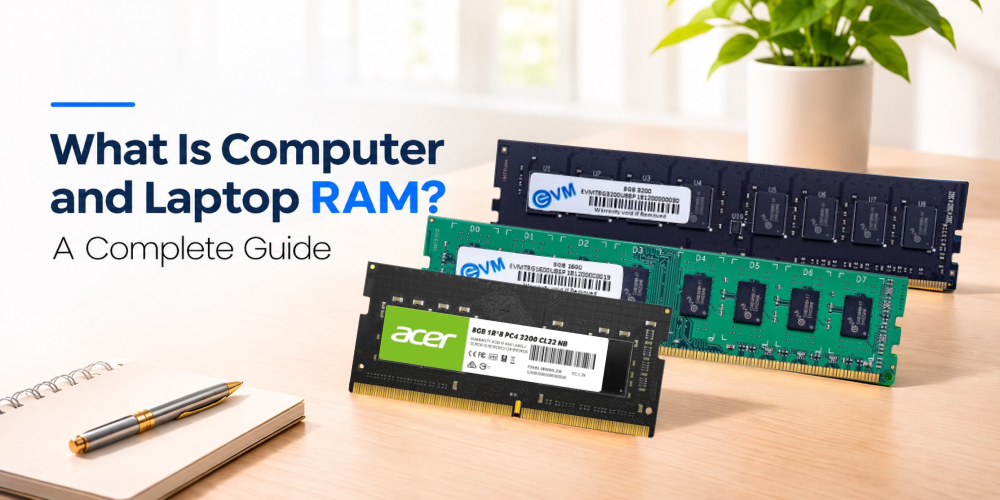
Every computer feels fast at some moments and sluggish at others. Browser tabs freeze, games stutter, and large files take too long to open. In many cases the cause is not the processor or the storage drive. It is memory. Understanding how Random Access Memory works helps you decide when an upgrade makes sense and which module to choose. This guide covers the basics, the main differences between formats and generations, and the factors that matter most when you shop.
What Is Random Access Memory?
Random Access Memory, usually shortened to RAM, is the short-term workspace of your device. When you open an application, your system copies the data it needs from the storage drive into RAM, because RAM can be read and written far faster than even a modern SSD. The processor then works with that data directly.
RAM is also volatile. It holds information only while the power is on, so anything stored there disappears when you shut down. That is why unsaved work is lost in a sudden power cut. Your hard drive or SSD is the long-term shelf, while RAM is the desk where you spread out the documents you are using right now. A bigger, faster desk lets you work on more things at once without shuffling papers around.
The Role of RAM in a Computer
RAM in a computer sits between the processor and the storage drive. The processor is extremely fast, and storage is comparatively slow. Without RAM acting as a buffer, the processor would spend much of its time waiting for data.
Every task you run uses a share of this computer memory. The operating system takes a portion as soon as it boots. Your browser, email client, music player, and messaging apps each claim more. When the total demand exceeds what is installed, the system starts using part of the storage drive as overflow space, known as virtual memory or a page file. Because storage is much slower, you notice lag, long loading times, and applications that stop responding.
This explains why adding memory often makes an older machine feel noticeably more responsive. It does not make the processor faster, but it removes the bottleneck that forces the system to wait.
Desktop Memory vs Laptop RAM
The two main formats are not interchangeable, so this distinction matters before you buy anything.
Desktop memory uses full-size modules called DIMMs (Dual In-line Memory Modules). They are long, and they fit into the wide slots found on desktop motherboards. Desktop systems usually offer two or four slots, which makes expansion easy.
Laptop RAM uses smaller modules called SO-DIMMs (Small Outline DIMMs). They are roughly half the length of a desktop module, so they fit inside slim chassis. Many laptops have two slots, while some ultrabooks have the memory soldered directly to the motherboard. Soldered memory cannot be upgraded, so check your model’s specifications before you plan anything.
A desktop module will not physically fit in a laptop slot, and the reverse is also true. Always match the format to your device.
Types of RAM You Should Know
There are several types of RAM, and the terms can confuse beginners.
DRAM (Dynamic RAM) is the main memory in almost every computer. It stores each bit of data in a tiny capacitor that must be refreshed constantly, which keeps it affordable and dense.
SRAM (Static RAM) is faster and does not need constant refreshing, but it is far more expensive and takes more space. It is used in small amounts as processor cache rather than as main memory.
SDRAM (Synchronous DRAM) is DRAM synchronized with the system clock. Every modern generation, including DDR, is built on this idea.
DDR (Double Data Rate) is the standard family used today. It transfers data twice per clock cycle, and it has gone through several generations: DDR, DDR2, DDR3, DDR4, and DDR5. Each generation improved speed and efficiency, and each uses a different slot design. You cannot mix them.
Graphics cards use another variant, GDDR, which is built for the heavy bandwidth demands of rendering.
DDR4 RAM and DDR5 RAM: Which One Do You Need?
Two generations dominate the market today. Understanding DDR4 RAM and DDR5 RAM helps you avoid buying a module your system cannot use.
DDR4 RAM has been the mainstream standard for years. Common speeds are 2666MHz and 3200MHz, and it is widely supported by older and mid-range desktops and laptops. It is mature and reliable, and it is usually the more affordable choice. If your system is a few years old, there is a good chance it runs on DDR4 RAM.
DDR5 is the newer standard. It starts at higher base speeds, such as 4800MHz, and offers better power efficiency and higher capacity per module. It suits newer platforms and users who want headroom for demanding workloads in the future.
The key point is that the two are not compatible. They have different notch positions, so a DDR5 module will not fit a DDR4 slot. Your motherboard or laptop decides which generation you can use. To find out, check your model’s specification sheet on the manufacturer’s website, or use a free tool such as CPU-Z to see what is currently installed. Do not upgrade the platform just to get DDR5 unless you have a real need for it. For many everyday users, a well-chosen DDR4 kit still performs very well.
RAM Capacity and Speed: Finding the Right Balance
When people shop, two numbers matter most: how much memory there is and how fast it runs. RAM capacity and speed both affect results, but they matter in different ways.
Capacity is measured in gigabytes. It decides how many tasks and how much data your system can hold at once. A rough guide:
- 8GB is enough for web browsing, office work, and video streaming.
- 16GB suits most users, including multitaskers, students, and casual gamers.
- 32GB or more is better for video editing, programming, virtual machines, and heavy design work.
Speed is measured in MHz and shows how quickly data moves. Higher speeds can improve performance, but only if your processor and motherboard support them. If a module is faster than your system allows, it simply runs at the lower supported speed. Paying extra for 4800MHz memory on a board that tops out at 3200MHz wastes money.
For most people, capacity is the more important number to fix first. A system with too little memory struggles no matter how fast the modules are. Once you have enough, speed becomes the fine-tuning factor.
Getting Better RAM Performance
Several factors shape RAM performance beyond the headline figures.
Dual-channel mode is one of the easiest gains. When you install two matched modules, such as two 8GB sticks instead of one 16GB stick, the system can read from both at once. This usually gives better performance than a single module of the same total size. Check that your device has at least two free slots before choosing a kit.
Matched modules also help. Using modules with the same capacity, speed, and timings avoids compatibility issues and keeps the system stable.
Correct installation matters too. Modules should click firmly into place, and on desktops they should go into the slots recommended in the motherboard manual.
Finally, remember that memory is only one part of the system. If a slow hard drive is the real bottleneck, a RAM upgrade will help less than moving to an SSD. Look at the whole picture before you spend.
Tips for Buying RAM Online
Many shoppers now prefer to buy RAM online because it gives them wider choice and easier price comparison. A few habits will keep you safe:
- Confirm the device type. Decide between desktop and laptop modules first.
- Check the generation. Match DDR4 or DDR5 to your motherboard or laptop.
- Verify the maximum supported capacity and speed in your system’s manual.
- Look at the warranty. Reliable memory should come with clear warranty terms.
- Choose trusted brands. Established manufacturers tend to offer better quality control.
- Use compatibility tools or ask for help if you are unsure. A short question before ordering can prevent a costly mistake.
Conclusion
RAM may be a small component, but it has a large effect on how your computer feels every day. It determines how smoothly you can multitask, how quickly programs load, and how long your system stays useful. Knowing the difference between desktop and laptop modules, the generations of DDR, and the balance between capacity and speed puts you in a strong position to choose well.
If you are ready to upgrade, Uniq Infotech offers desktop and laptop memory in DDR4 and DDR5 options, with a range of capacities and trusted brands to choose from. Their team can also help you confirm compatibility before you order, so you get the right module the first time.